Mateusz NowakI am a third-year PhD candidate in the LISP Lab at the Thayer School of Engineering, Dartmouth College, where I work on 3D computer vision and multi-modal machine learning. My PhD advisor is Peter Chin. Most recently, in the summer of 2026, I joined Apple in London as a Character Animation with ML intern. Before that, I interned at Autodesk Research UK, also in London, as an AI Research Scientist, working on vision-language models and 3D vision. Earlier, I worked as a Machine Learning & Computer Vision intern on 3D Gaussian Splatting at Samsung Research UK (SRUK) in Staines, UK, and as an AI Algorithm Development intern at Huawei Technologies R&D UK in Cambridge, UK, working on Neural Radiance Fields. I hold an MSc in Computer Science with a major in Visual and Interactive Computing from ETH Zurich. I completed my master's thesis in collaboration with Disney Research Zurich, focusing on Neural Architecture Search under Tunc Aydin and Farnood Salehi. Previously, I earned my BSc in Computer Science (specializing in Artificial Intelligence) from King's College London and completed a year-long exchange at the National University of Singapore. I have also taught — as head TA for ENGS106 at Dartmouth in Winter 2025, and as a TA at King's for modules in foundations of computing, elementary logic, and data structures in 2020–2021.
Email: mateusz.m.nowak.th[at]dartmouth[dot][edu(cation)] |

|
ResearchI am interested in neural rendering, computer vision, multi-modal machine learning, optimization and graphics. |
|
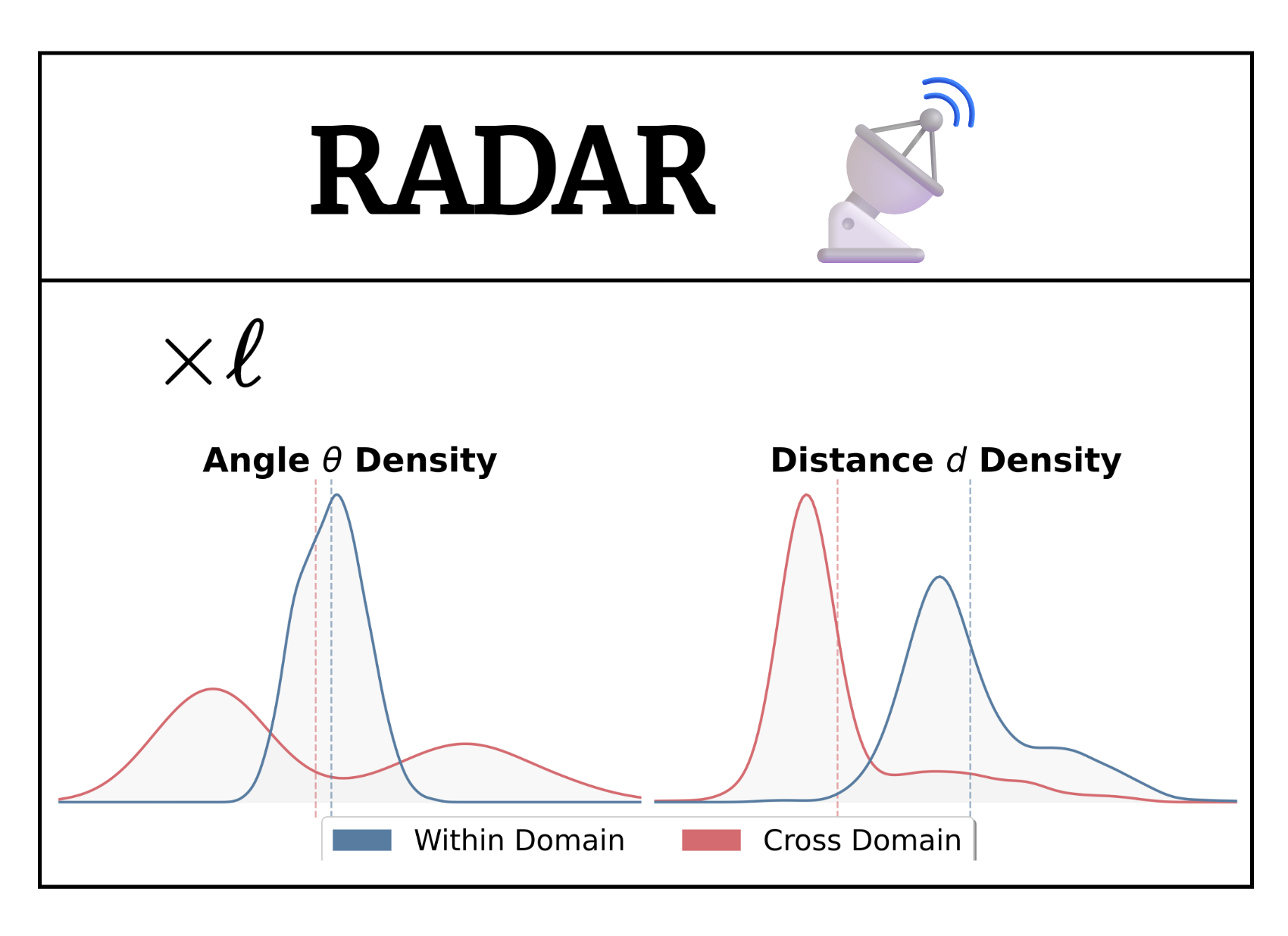
RADAR: Relative Angular Divergence Across RepresentationsXavier Cadet*, Mateusz Nowak*, Peter Chin NeurIPS, 2026 Paper / arXiv / Project We propose RADAR, a simple, geometrically grounded metric for estimating cross-domain transferability in foundation models. RADAR analyzes the layer-wise evolution of representations by measuring angular alignments and relative changes in distance along layer-to-layer displacement trajectories, and by comparing empirical distributions of within-domain and cross-domain dynamics. We hypothesize that domain transferability is related to the divergence between these trajectory distributions. We evaluate the metric across multiple modalities, including cross-lingual sentiment classification with text embedding models and cross-domain image classification with foundation vision models. |
|
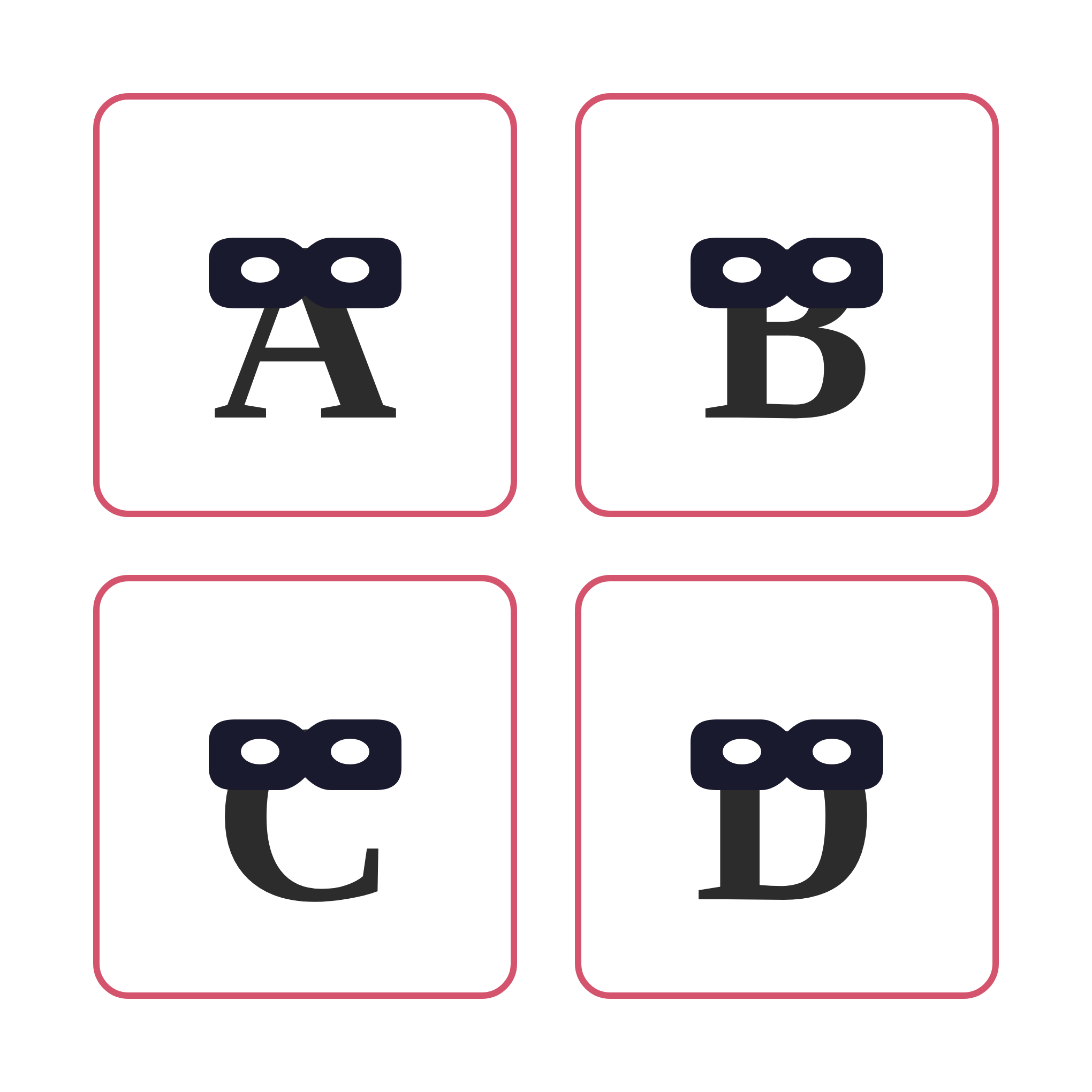
ABCD: All Biases Come DisguisedMateusz Nowak*, Xavier Cadet*, Peter Chin ICML, 2026 Paper / arXiv / Slides / Project Language models evaluated on standard multiple-choice benchmarks often rely on superficial artifacts like label formatting or answer position rather than actual reasoning. To address this, our proposed bias-reduced protocol replaces structured labels with uniform ones and uses sentence similarity for full-text answer evaluation, significantly improving robustness and reducing accuracy variance by 3x with minimal performance loss. |
|
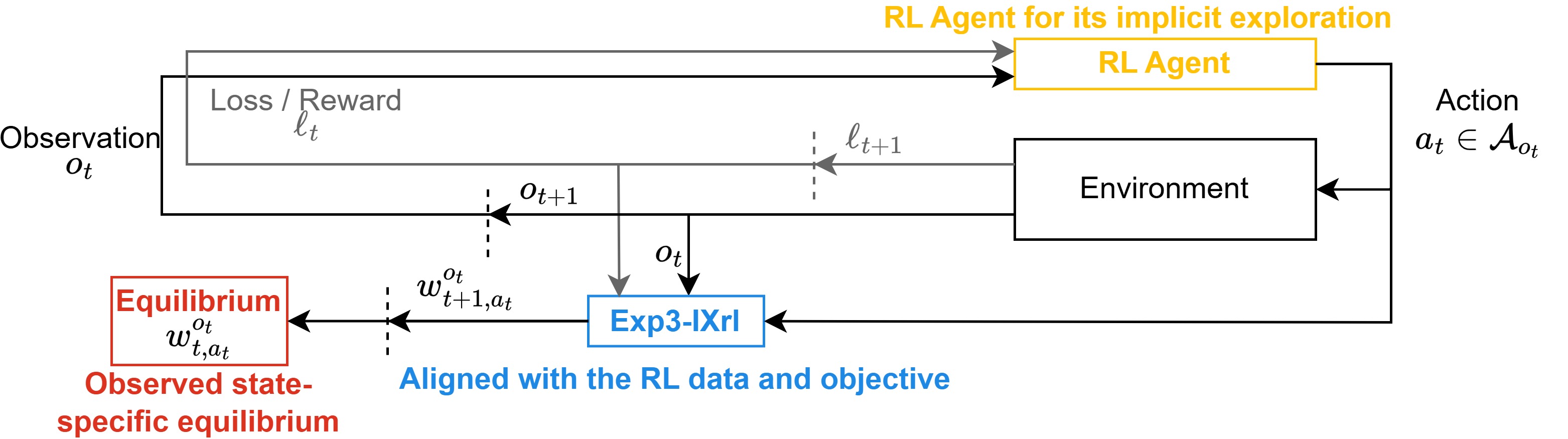
Explore Reinforced: Equilibrium Approximation with Reinforcement LearningMateusz Nowak*, Qintong Xie*, Emma Graham, Ryan Yu, Michelle Yilin Feng, Roy Leibovitz, Xavier Cadet, Peter Chin GameSec, 2025 Paper / arXiv (old) To bridge the gap between the theoretical guarantees of game-theoretic methods and the practical scalability of reinforcement learning (RL) in large stochastic environments, we introduce Exp3-IXRL, an equilibrium approximator that uses RL to update approximations while preserving the integrity of both processes. By extending Exp3 algorithms beyond stateless settings, our method empirically demonstrates strong performance across standard and stochastic multi-armed bandits, as well as in complex adversarial cybersecurity networks. |
|
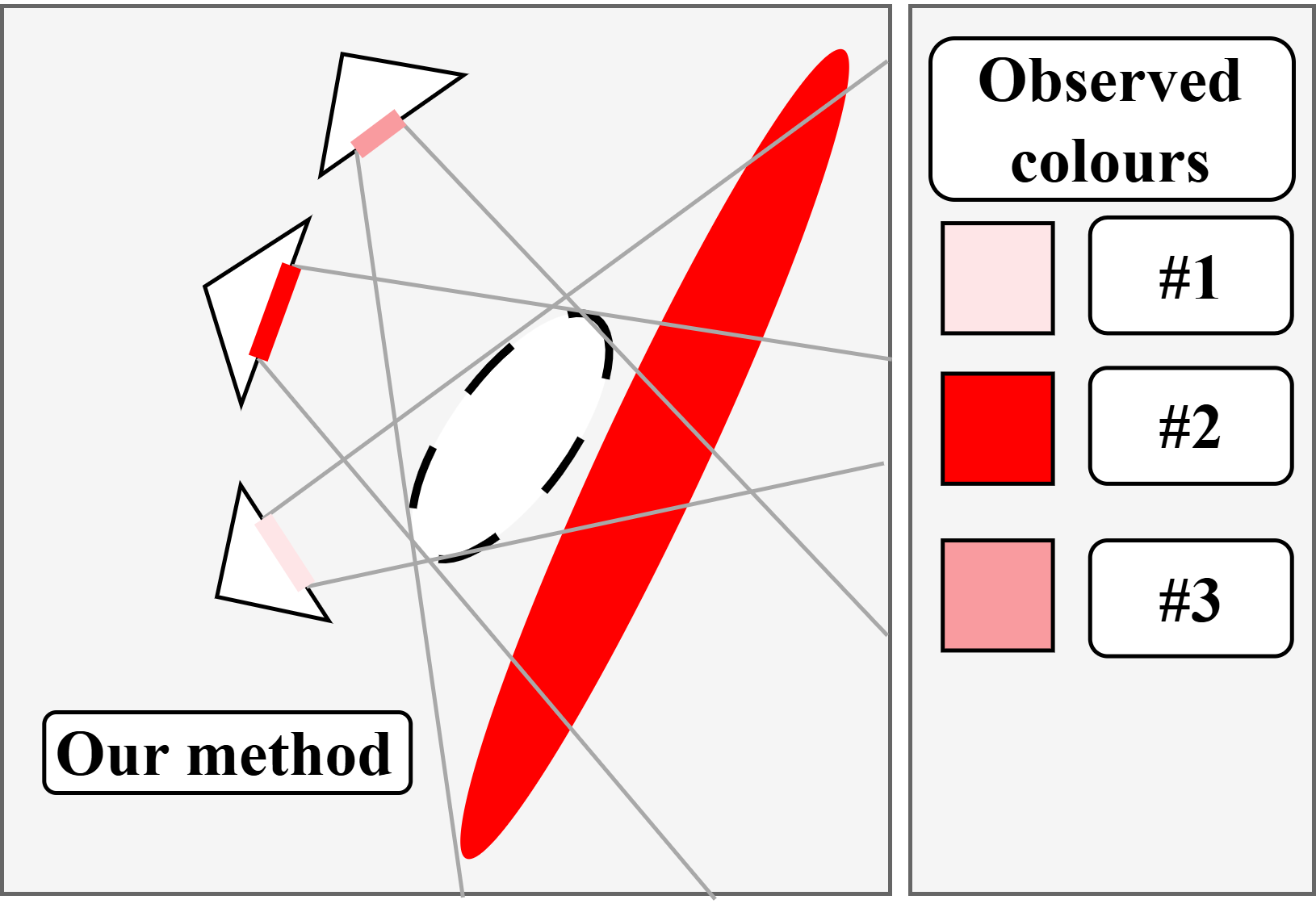
VoD-3DGS: View-opacity-Dependent 3D Gaussian SplattingMateusz Nowak, Xavier Cadet, Peter Chin arxiv, 2025 arXiv (old) As standard 3D Gaussian Splatting (3DGS) struggles to separate objects from view-dependent lighting effects like reflections and specular highlights, we propose a data-driven enhancement that uses an additional symmetric matrix to make each Gaussian’s opacity view-dependent. By suppressing specific Gaussians based on the viewing angle, our approach accurately renders complex lighting and achieves improved performance across multiple benchmark datasets while maintaining rendering speeds of approximately 100 FPS. |
|
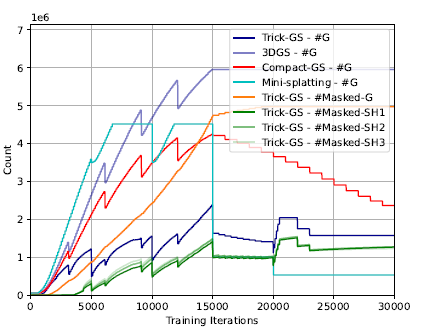
Trick-GS: A Balanced Bag of Tricks for Efficient Gaussian SplattingAnil Armagan, Albert Saà-Garriga, Bruno Manganelli, Mateusz Nowak, Mehmet Kerim Yucel ICASSP, 2025 Paper / arXiv To make high-quality 3D Gaussian Splatting (GS) viable for computationally constrained devices, we introduce Trick-GS, which integrates progressive training, significance-based pruning, and an accelerated training framework. This approach achieves comparable accuracy to vanilla GS while delivering up to 2x faster training and rendering speeds, alongside a 40x reduction in model size. |
Other ProjectsThese include coursework, side projects and unpublished research work. |
|
Design and source code from Jon Barron's website |